

Crawled Currently Not Indexed: How to Fix It in Search Console
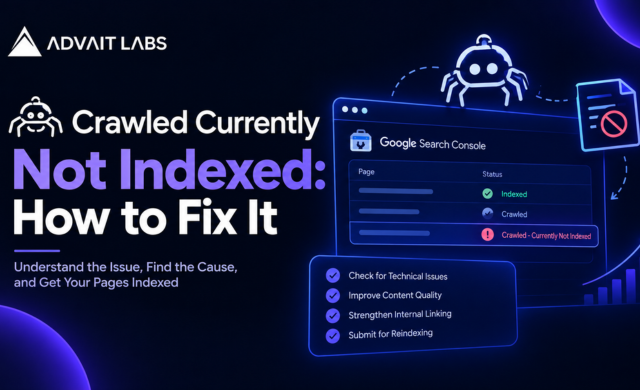
When Google Search Console shows “Crawled – currently not indexed,” it means Google has visited your page but has not added it to its search index. The issue is therefore not necessarily that Google cannot find or crawl the page. Instead, Google has not yet decided to include that URL in its searchable index.
This can happen with blog posts, service pages, location pages, product pages and other URLs. Sometimes it is temporary. In other cases, it can indicate duplicate content, weak internal linking, incorrect canonical signals, noindex directives or broader technical SEO issues.
At Advait Labs, we recommend diagnosing the underlying reason instead of repeatedly requesting indexing. Here is a practical way to identify and fix the problem.
If important pages on your website remain “Crawled – currently not indexed,” Advait Labs can help identify technical SEO and content issues affecting your website in Hyderabad.
What Does “Crawled – Currently Not Indexed” Mean?
Google generally works through several stages before a page can appear in search results.
Crawling means Googlebot accesses and reads a URL. Indexing is the process of evaluating that page and deciding whether it should be stored in Google’s index.
Therefore, “Crawled – currently not indexed” means:
- Google has successfully crawled the URL.
- The URL is currently not included in Google’s index.
- It does not automatically mean that the page has a technical error.
- Requesting indexing does not guarantee that Google will index the page.
This is different from “Discovered – currently not indexed.” A discovered URL is known to Google but has not necessarily been crawled yet.
Google can decide not to index a technically accessible page for several reasons, including duplication, quality, canonicalisation and the overall value of the URL.
Why Is a Page Crawled but Not Indexed?
There is no single reason behind this Search Console status. Several factors can influence Google’s indexing decision.
Thin or Low-Value Content
A page may be technically accessible but provide limited value compared with other available pages.
Examples include:
- Very short articles with little original information
- Automatically generated location pages
- Service pages using almost identical templates
- Content that repeats information already available elsewhere
- Pages created mainly to target additional keywords
The solution is not simply adding more words. Improve the page with useful explanations, examples, original insights, practical instructions, relevant evidence and answers to genuine user questions.
Duplicate or Highly Similar Content
Duplicate content can make it difficult for search engines to determine which URL should represent a particular topic.
Check whether the page is substantially similar to:
- Another blog on your website
- A service page
- A location page
- A category or tag page
- Another URL with parameters
- An HTTP or HTTPS variation
Where appropriate, consolidate duplicate pages or use a correct canonical URL.
A plagiarism check is also useful before publishing, particularly when content is created using multiple external sources. However, plagiarism checking alone does not solve indexing problems. The page should also provide distinct value and have clear technical signals.
Google Selected a Different Canonical URL
Your website may identify one URL as the preferred version, while Google selects another URL as canonical.
Use the Google Search Console URL Inspection Tool to check:
- User-declared canonical
- Google-selected canonical
- Indexing status
- Crawl information
- Page availability
If Google has selected another canonical URL, investigate duplicate content, internal links, redirects and canonical tags.
Weak Internal Linking
A page can be crawlable but poorly connected to the rest of your website.
Important pages should receive relevant internal links from established pages. This helps search engines understand the relationship between pages and the importance of different URLs within your site structure.
Link to the page from:
- Relevant service pages
- Related blog posts
- Category pages
- High-value informational pages
- Appropriate navigation sections
Use descriptive anchor text rather than generic phrases such as “click here.”
An Unwanted Noindex Tag
Check whether the page contains a noindex directive such as:
<meta name=”robots” content=”noindex”>
If the page should appear in Google, an unintended noindex directive needs to be removed.
Check your CMS, SEO plugin and page settings because these can sometimes add indexing directives automatically.
Do not confuse a noindex directive with robots.txt. Robots.txt primarily controls crawling, while noindex tells search engines not to include a page in search results.
Technical SEO Problems
Other technical issues can also affect how Google processes a page.
Check for:
- Incorrect canonical tags
- Redirect chains
- Unexpected redirects
- 404 or soft 404 pages
- Server errors
- Incorrect HTTP status codes
- Rendering problems
- Important content hidden behind JavaScript
- Conflicting robots directives
- Poorly configured international SEO signals
For complex websites, server logs can provide additional information about how Googlebot accesses important URLs.
How to Fix “Crawled – Currently Not Indexed”
Follow this process before requesting indexing again.
Step 1: Inspect the URL in Google Search Console
Enter the exact URL into the URL Inspection Tool.
Review the indexing status, canonical information, crawl details and page availability.
This helps establish whether the problem is technical or related to the page itself.
Step 2: Check Noindex and Canonical Settings
Confirm that the page can be indexed and that the canonical URL is correct.
If your CMS automatically generates canonical or robots directives, check those settings as well.
Step 3: Review the Content
Compare your page with other pages targeting the same search intent.
Ask:
- Does the page answer the user’s question clearly?
- Is the information original?
- Does it provide practical value?
- Does it cover important subtopics?
- Is it substantially different from another page on your website?
Do not copy competitors. Instead, identify information gaps and improve your own page.
Step 4: Improve Internal Links
Add relevant internal links from existing pages to the URL.
Also link from the new page to other useful resources. This creates stronger topical relationships and makes important pages easier to discover.
Step 5: Check the XML Sitemap
Make sure the preferred URL appears in your XML sitemap.
A sitemap helps Google discover URLs, but it does not guarantee indexing. It should work alongside internal links and a clear site architecture.
Step 6: Improve the Page’s Usefulness
Avoid adding filler just to increase word count.
Instead, consider adding:
- Original examples
- Step-by-step instructions
- Relevant screenshots
- Expert insights
- Credible statistics
- FAQs
- Comparison information
- Practical checklists
The objective is to make the page genuinely useful to the person who lands on it.
Step 7: Request Indexing
Once meaningful changes have been made, return to the URL Inspection Tool and select “Request Indexing” when available.
Remember that this does not force Google to index the URL. Repeatedly submitting the same unchanged page is unlikely to resolve an underlying content or technical issue.
Step 8: Monitor the Page
Continue monitoring the URL through Search Console and the Page Indexing report.
If the page remains unindexed, investigate the underlying signals again rather than repeatedly submitting the URL.
Can Robots.txt Cause a Page to Stay Unindexed?
Robots.txt and indexing are related but serve different purposes.
A robots.txt rule can prevent Googlebot from crawling a URL. A noindex directive tells Google not to index a page.
If Search Console specifically reports “Crawled – currently not indexed,” do not automatically assume that robots.txt is the problem. Inspect the URL’s actual indexing status and review the robots.txt file separately.
Should You Delete Pages That Are Not Indexed?
Not necessarily.
An unindexed page may still be useful, and the status can sometimes be temporary. Do not delete a page simply because it is not indexed.
Consider consolidating, redirecting, removing or intentionally noindexing a page when it is:
- Completely redundant
- Outdated and no longer useful
- Substantially duplicated
- Created only for search engines
- Providing little value to visitors
Important commercial pages should be investigated before making these decisions.
Final Checklist for Crawled but Not Indexed Pages
Before requesting indexing, check that:
- The URL returns the correct status code.
- The page is not unintentionally marked noindex.
- The canonical URL is correct.
- Google is not selecting a different canonical.
- The content is original and useful.
- The page satisfies a clear search intent.
- The page does not unnecessarily duplicate another URL.
- Relevant internal links point to the page.
- The preferred URL is included in the XML sitemap.
- Important content can be accessed and rendered.
- There are no major redirect or server issues.
- Meaningful improvements have been made before requesting indexing.
Fixing “Crawled – currently not indexed” is rarely about one setting. The stronger approach is to make the page technically accessible, clearly canonical, well connected through internal links and genuinely useful to searchers.
Looking for professional SEO services in Hyderabad? Advait Labs helps businesses identify technical SEO issues, improve website crawlability, strengthen internal linking and resolve Google indexing problems.
Contact Advait Labs to review your website’s indexing performance.
Frequently Asked Questions
What does “Crawled – currently not indexed” mean?
It means Google has crawled the page but has not included it in its search index yet. The page may be technically accessible, but Google has not selected it for indexing at that time.
How do I fix “Crawled – currently not indexed”?
Check the URL in Google Search Console, review noindex and canonical settings, improve content quality, resolve duplicate content, strengthen internal links, check the XML sitemap and fix technical SEO problems. You can then request indexing after making meaningful changes.
Does requesting indexing guarantee that Google will index a page?
No. Requesting indexing asks Google to reconsider the URL, but it does not guarantee inclusion in the index. Google makes its own indexing decisions based on multiple signals.
Why is Google crawling my page but not indexing it?
Common reasons include thin content, duplicate or highly similar pages, incorrect canonical signals, weak internal linking, low-value URLs, technical issues or other signals that make Google choose not to index the page.
How long does it take for Google to index a crawled page?
There is no fixed indexing timeframe. Some pages may be processed relatively quickly, while others can take longer. Repeatedly requesting indexing does not guarantee faster processing.
Does a noindex tag cause a page not to be indexed?
Yes. A noindex directive tells search engines not to include the page in search results. If a page should be indexed, check that the noindex directive has not been added accidentally.
Does an XML sitemap guarantee Google will index my page?
No. An XML sitemap helps Google discover URLs and understand which URLs you consider important, but sitemap inclusion does not guarantee indexing.
Should I delete a page if it says “Crawled – currently not indexed”?
No. First determine why the page is not indexed. If the page provides useful, unique information, improve its content and technical signals. Remove or consolidate it only when there is a genuine reason to do so.
