

How to Use Google Tag Manager
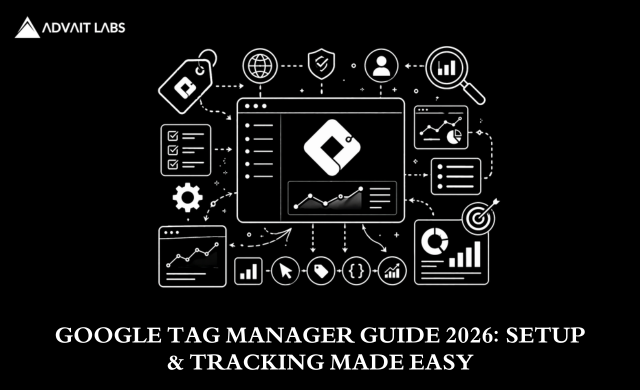
Google Tag Manager is a free tool from Google that lets you add, manage, and update tracking codes — called tags — on your website without editing your website’s source code. Instead of asking a developer to manually install Google Analytics, a Facebook Pixel, a Google Ads conversion tag, or a heatmap script every time you need one, Google Tag Manager provides a single container that manages all of these tags from one central dashboard.
📊 Want your website tracking and campaign measurement set up correctly? Advait Labs configures Google Tag Manager and analytics as part of our digital strategy and SEM services in Hyderabad.
Before GTM existed, every new tracking requirement meant a developer ticket, a deployment cycle, and days of waiting. With GTM, a marketer can install a new conversion tracking tag, test it, and publish it live in under an hour — without touching a single line of code. For businesses running search engine marketing campaigns, social media advertising, or any form of digital strategy that requires measurement, GTM is not a nice-to-have. It is essential infrastructure.
At Advait Labs, we configure Google Tag Manager as part of our digital strategy and search engine marketing services for clients in Hyderabad. Proper tag management is the foundation of accurate campaign measurement — and without accurate measurement, no marketing decision can be made with confidence.
How Google Tag Manager Works: The Core Concepts
Understanding three core concepts makes GTM straightforward to use:
Tags
Tags are the pieces of code you want to run on your website — Google Analytics 4, the Meta Pixel, Google Ads conversion tracking, LinkedIn Insight Tag, Hotjar, Microsoft Clarity, and so on. Instead of pasting each of these scripts directly into your website’s HTML, you configure them as tags inside GTM. GTM then fires them according to rules you define.
Triggers
Triggers are the conditions that cause a tag to fire. Common triggers include: page view (fire the tag on every page load), click (fire the tag when a specific button is clicked), form submission (fire the tag when a contact form is submitted), or scroll depth (fire the tag when a visitor scrolls to 50% of a page). Triggers are what make GTM intelligent — they allow you to track specific user actions rather than just page visits.
Variables
Variables are pieces of information that GTM can use in tags and triggers — for example, the page URL, the text of a clicked button, or the value of a form field. Variables allow your tags and triggers to be dynamic and reusable rather than hard-coded for a single specific scenario.
Step-by-Step: Setting Up Google Tag Manager on Your Website
Step 1: Create Your GTM Account and Container
Go to tagmanager.google.com and sign in with your Google account. Click ‘Create Account’, enter your business name and your website’s URL, select ‘Web’ as the target platform, and click Create. GTM will generate your container code — two snippets of JavaScript that need to be added to your website.
Step 2: Install the GTM Container Code on Your Website
GTM provides two code snippets: one goes in the <head> section of every page on your website, and one goes immediately after the opening <body> tag. This is the only time you need a developer’s help — or, if your website runs on WordPress, you can install the GTM container using a plugin like ‘GTM4WP’ (Google Tag Manager for WordPress) without touching code directly.
Once the container is installed, every tag you configure inside GTM will be managed through the GTM dashboard — no further code changes needed.
Step 3: Install Google Analytics 4 via GTM
1. In your GTM workspace, click Tags > New
2. Click Tag Configuration and select Google Analytics: GA4 Configuration
3. Enter your GA4 Measurement ID (found in your Google Analytics property settings under Data Streams)
4. Under Triggering, select All Pages
5. Name the tag ‘GA4 — All Pages’ and click Save
6. Click Preview to test the tag, then Submit and Publish when confirmed working
Step 4: Set Up Conversion Tracking
Conversion tracking is one of GTM’s most powerful applications. For a contact form submission, create a Tag that fires your Google Ads or GA4 conversion event, with a Trigger set to ‘Form Submission’ on the specific page containing your form. This tells Google Ads and Analytics exactly how many visitors completed your desired action — the data that powers campaign optimisation.
For phone call clicks, set up a Click trigger that fires when a visitor clicks your phone number link (a link beginning with ‘tel:’). For button clicks, use GTM’s Click – All Elements trigger and filter by the button’s class name or ID.
Installing the Meta Pixel via GTM
The Meta (Facebook) Pixel is one of the most common tags businesses need on their websites — it powers retargeting campaigns, Lookalike Audiences, and conversion optimisation for Facebook and Instagram ads. Installing it via GTM is straightforward:
7. In GTM, create a new Tag and select Custom HTML as the tag type
8. Paste your Meta Pixel base code into the HTML field
9. Set the trigger to All Pages
10. Name the tag ‘Meta Pixel — Base Code’ and save
11. For specific events (like lead form submissions), create additional tags with the relevant Meta standard event code and trigger them on the corresponding form submission or button click
Using GTM’s Preview Mode to Test Tags Before Going Live
GTM’s Preview mode is one of its most valuable features — it allows you to test every tag configuration on your live website in a sandboxed environment before publishing changes. When Preview mode is active, a GTM debug panel appears at the bottom of your browser showing exactly which tags fired on each page, which triggers activated them, and any errors in the configuration.
Never publish new tags to your live website without testing them in Preview mode first. A misconfigured conversion tag can corrupt the data that your Google Ads and Analytics campaigns rely on — leading to poor optimization decisions that cost significant budgets.
Common GTM Tags Every Business Website Should Have
• Google Analytics 4 — all pages: tracks all website traffic, user behaviour, and engagement
• GA4 conversion events: tracks form submissions, phone clicks, and other key actions
• Google Ads conversion tracking: measures which ad clicks led to conversions for campaign optimisation
• Meta Pixel base code: enables Facebook and Instagram retargeting and conversion optimisation
• Microsoft Clarity or Hotjar: records heatmaps and session recordings for UX analysis
• LinkedIn Insight Tag: tracks LinkedIn ad conversions and enables retargeting for B2B campaigns
GTM Best Practices to Keep Your Container Clean
• Name every tag, trigger, and variable clearly and consistently — ‘GA4 — Form Submit — Contact Page’ is better than ‘Tag 7’
• Use GTM’s built-in versioning — every time you publish changes, GTM creates a version snapshot you can roll back to if something goes wrong
• Archive unused tags rather than deleting them — this preserves the history of what was configured
• Use folders to organise tags by platform or campaign — keeps large containers manageable
• Document non-obvious configurations with GTM’s built-in notes feature
Conclusion
Google Tag Manager is one of the most powerful tools available to digital marketers — giving non-technical teams full control over their website’s tracking infrastructure without developer dependency. Once properly set up, GTM makes adding new tags, testing tracking changes, and troubleshooting analytics issues a self-service process that takes minutes rather than days.
For businesses in Hyderabad running search engine marketing, social media advertising, or any form of performance marketing, correct tag management is not optional. Without it, your campaign data is unreliable, your optimisation decisions are guesswork, and every rupee of ad spend is less efficient than it should be.
📍 Visit Us in Hyderabad Advait Labs
Frequently Asked Questions
Q: Is Google Tag Manager free?
A: Yes, completely free. There are no fees to create a GTM account, create containers, or publish tags. It works with any website and any tag type.
Q: Do I need coding skills to use Google Tag Manager?
A: For most common use cases — Google Analytics, Meta Pixel, conversion tracking — no coding is required. GTM provides built-in templates for the most popular tags. Custom HTML tags require basic familiarity with JavaScript for more advanced configurations.
Q: Can I install GTM on a WordPress website without a developer?
A: Yes. The GTM4WP plugin (Google Tag Manager for WordPress) installs your GTM container code automatically without editing your theme files. It is the recommended approach for WordPress sites.
Q: What happens if a GTM tag is configured incorrectly?
A: Incorrectly configured tags can cause inaccurate analytics data, failed conversion tracking, or — in rare cases — slow page loading. Always test in GTM’s Preview mode before publishing, and use version control to roll back if issues arise after publishing.
Q: Should I use GTM or install tracking codes directly in my website?
A: GTM is almost always the better approach. It centralises all tracking management in one place, removes developer dependency for most changes, provides built-in testing tools, and gives you version control. Direct code installation is harder to manage, audit, and update.
